
OpenClaw Skills Guide: 15 Must-Have Skills for Your AI Assistant (2026)
Discover the best OpenClaw skills to supercharge your AI assistant. From web search to image generation, learn how to install, configure, and create custom skills.

Jean-Elie Lecuy
|Founder of ClawRapid
SaaS builder writing about OpenClaw, AI agents, and agentic coding, with one goal: make powerful tooling actually usable.
OpenClaw has become the most popular open-source AI assistant in 2026, with a thriving ecosystem of community-built skills on ClawHub. But with that many options, finding the right skills for your needs can feel overwhelming.
This guide cuts through the noise. We will cover the 15 most useful OpenClaw skills, show you how to install and configure them, walk you through creating your own custom skills, and explain how ClawRapid comes pre-configured with the best skill stack so you can skip the setup entirely.
What Are OpenClaw Skills?
OpenClaw skills are modular capability extensions that teach your AI assistant how to use specific tools. Each skill is a folder containing a SKILL.md file with instructions and optional scripts. When loaded, skills give your assistant new abilities: searching the web, controlling a browser, managing your calendar, generating images, and much more.
Think of skills as apps for your AI assistant. Just like you install apps on your phone to add new features, you install skills on OpenClaw to expand what your assistant can do.
Skills follow the AgentSkills open standard, which means they are portable across compatible AI platforms. The system automatically filters available skills at load time based on your environment, configuration, and installed dependencies.
Where Skills Live
OpenClaw loads skills from three locations, in order of priority:
- Workspace skills (
<project>/skills/) - highest priority, per-project - Local/managed skills (
~/.openclaw/skills/) - shared across all agents on your machine - Bundled skills - shipped with OpenClaw itself
If the same skill name exists in multiple locations, the highest-priority version wins. This lets you override bundled skills with your own customized versions when needed.
The 15 Most Useful OpenClaw Skills

After testing hundreds of skills from the ClawHub registry, here are the 15 that deliver the most value for solopreneurs, business owners, and productivity enthusiasts.
1. Web Search
What it does: Lets your assistant search the internet in real time using APIs like Brave Search or Tavily.
Why it matters: Without this skill, your assistant only knows what its training data contains. With web search, it can find current prices, check competitors, research topics, and verify facts on the fly.
Best for: Market research, competitor analysis, fact-checking, staying up to date on industry news.
2. Browser Automation
What it does: Gives your assistant full control over a web browser, including navigating pages, clicking elements, filling forms, and taking screenshots.
Why it matters: Some tasks require more than a simple search. Browser automation lets your assistant interact with web apps, scrape dynamic content, fill out forms, and capture visual information from any website.
Best for: Price monitoring, form submissions, scraping data from competitor websites, automating repetitive web tasks.
3. Calendar & Scheduling
What it does: Connects your assistant to Google Calendar (or other calendar services) so it can read, create, and manage events.
Why it matters: Scheduling is one of the most time-consuming administrative tasks. With this skill, you can ask your assistant to "book a meeting with Sarah next Tuesday at 3 PM" and it handles the rest.
Best for: Appointment booking, meeting management, time blocking, availability checking.
4. Email (Gmail / Outlook)
What it does: Lets your assistant read, compose, and send emails through your email account.
Why it matters: Email is still the backbone of business communication. Your assistant can draft replies, summarize unread messages, flag important emails, and even send follow-ups on your behalf.
Best for: Email triage, automated follow-ups, newsletter drafts, customer communication.
5. Text-to-Speech (TTS)
What it does: Converts text into natural-sounding audio using services like ElevenLabs, OpenAI TTS, or Google Cloud TTS.
Why it matters: Audio content is booming. This skill lets your assistant create voiceovers, read articles aloud, generate audio summaries, and add a voice layer to your messaging interactions.
Best for: Content creators, podcast preparation, accessibility, voice messages in Telegram/WhatsApp.
6. Image Generation
What it does: Creates images from text descriptions using AI models like Gemini, DALL-E, or Stable Diffusion.
Why it matters: Visual content is essential for social media, blog posts, presentations, and marketing materials. Instead of hiring a designer for every quick visual, your assistant generates images on demand.
Best for: Social media graphics, blog illustrations, product mockups, presentation visuals.
7. Image Analysis (Vision)
What it does: Analyzes images you send to your assistant, describing what it sees, extracting text (OCR), or answering questions about visual content.
Why it matters: From reading receipts and invoices to analyzing competitor ads or understanding charts, vision capabilities turn your assistant into a visual processing powerhouse.
Best for: Receipt scanning, document analysis, competitor ad analysis, accessibility descriptions.
8. Notes & Personal Knowledge Management
What it does: Connects your assistant to note-taking apps like Notion, Obsidian, or Apple Notes, letting it create, search, and organize your notes.
Why it matters: Your assistant becomes a second brain. It can capture ideas during conversations, organize meeting notes, and retrieve information from your knowledge base instantly.
Best for: Meeting notes, idea capture, research organization, knowledge base management.
9. Git & GitHub
What it does: Lets your assistant interact with Git repositories: checking status, creating commits, opening pull requests, and managing issues.
Why it matters: For developers and technical solopreneurs, this skill automates the tedious parts of version control and project management.
Best for: Code review, issue tracking, automated commits, project management.
10. PDF & Document Processing
What it does: Reads, summarizes, and extracts information from PDF files and other document formats.
Why it matters: Business runs on documents. This skill lets your assistant process contracts, invoices, reports, and any other PDF without you having to read every page manually.
Best for: Contract review, invoice processing, report summarization, data extraction.
11. Smart Home & IoT
What it does: Connects your assistant to smart home platforms like Home Assistant, letting it control lights, thermostats, locks, and other IoT devices.
Why it matters: Voice assistants like Alexa and Google Home are limited to pre-built routines. OpenClaw with smart home skills can handle complex, context-aware automations that adapt to your schedule and preferences.
Best for: Home automation, energy management, security monitoring, custom routines.
12. Social Media Management
What it does: Posts content, monitors mentions, and manages your social media accounts across platforms like Twitter/X, LinkedIn, Instagram, and TikTok.
Why it matters: Consistent social media presence is critical for solopreneurs, but it eats up hours every week. This skill lets your assistant draft posts, schedule content, and track engagement.
Best for: Content scheduling, engagement monitoring, cross-platform posting, analytics tracking.
13. Data & Analytics
What it does: Connects to databases, spreadsheets, and analytics tools to query data, generate reports, and create visualizations.
Why it matters: Making data-driven decisions requires access to your numbers. This skill turns your assistant into an analyst that can pull stats, generate charts, and spot trends.
Best for: Sales reporting, website analytics, financial tracking, KPI dashboards.
14. Speech & Transcription
What it does: Converts audio and voice messages into text using services like Whisper, Deepgram, or Google Speech-to-Text.
Why it matters: Combined with the messaging platform integration, your assistant can understand voice messages you receive on Telegram or WhatsApp, transcribe meeting recordings, and process audio content.
Best for: Meeting transcription, voice message processing, podcast notes, accessibility.
15. MCP (Model Context Protocol) Servers
What it does: Connects your assistant to any MCP-compatible tool server, instantly adding dozens of specialized capabilities.
Why it matters: MCP is the universal connector for AI tools. A single MCP server can expose an entire API (Stripe, Shopify, HubSpot, etc.) to your assistant. Instead of installing individual skills for each service, you connect one MCP server and get full access.
Best for: CRM integration, e-commerce management, payment processing, any SaaS tool with an MCP server.
How to Install and Configure Skills
Installing from ClawHub
ClawHub is the official public registry for OpenClaw skills, hosting a large ecosystem of community-built skills. Installing a skill takes one command:
npx clawhub@latest install <skill-slug>
For example, to install a web search skill:
npx clawhub@latest install web-search
To update all your installed skills at once:
npx clawhub@latest update --all
Manual Installation
If you prefer, you can install skills manually by copying the skill folder to one of these locations:
- Global (all agents):
~/.openclaw/skills/ - Workspace (current project only):
<project>/skills/
You can also paste a skill's GitHub repository URL directly into your assistant's chat and ask it to install it. OpenClaw handles the setup automatically.
Configuring Skills
Most skills require an API key or some configuration. You set these in ~/.openclaw/openclaw.json:
{
  "skills": {
    "entries": {
      "web-search": {
        "enabled": true,
        "apiKey": "your-api-key-here"
      }
    }
  }
}
Skills declare their requirements in their SKILL.md metadata. OpenClaw checks these at load time and only enables skills whose dependencies are met. For example, a skill that requires ffmpeg will only load if ffmpeg is installed on your system.
Security Best Practices
With thousands of community skills available, security matters:
- Always review a skill's source code before installing, especially if it requires access to sensitive data
- Review the source code before installing any community skill
- Use sandboxed execution for untrusted skills (OpenClaw supports Docker sandboxing)
- Limit API key exposure - use environment variables instead of hardcoding keys
How to Create Your Own Custom Skills
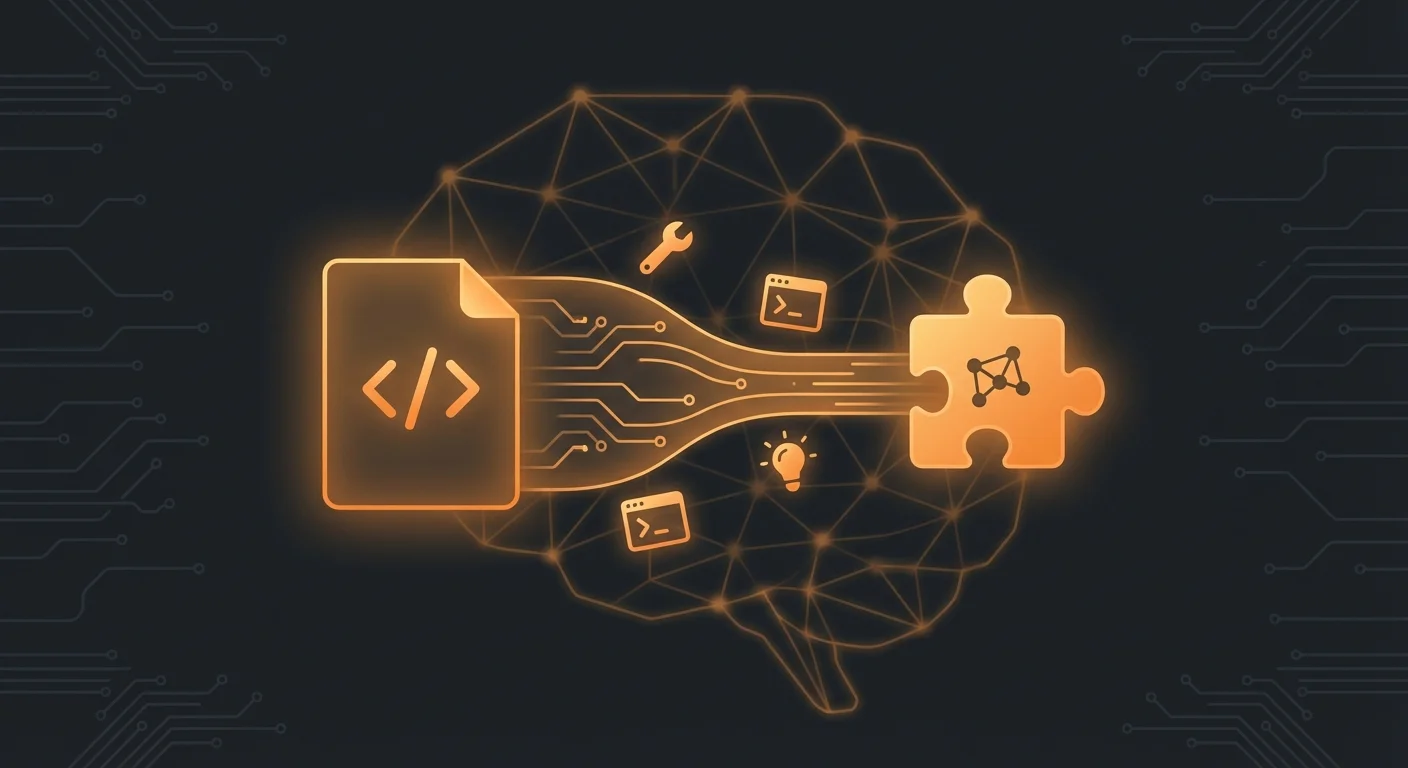
One of OpenClaw's greatest strengths is how easy it is to create custom skills. If you can write a markdown file, you can build a skill.
The Minimum Viable Skill
A skill needs just one file: SKILL.md with YAML frontmatter and instructions.
---
name: my-custom-skill
description: A brief description of what this skill does
---

# My Custom Skill

Instructions for the AI agent on how to use this skill.

## Usage

Run the following command to do the thing:

\`\`\`bash
curl -s "https://api.example.com/data" | jq '.results'
\`\`\`
That is it. Save this as skills/my-custom-skill/SKILL.md in your workspace, and OpenClaw picks it up automatically on the next session.
Adding Dependencies and Gating
For more advanced skills, you can specify requirements in the metadata:
---
name: my-advanced-skill
description: Skill that requires Python and an API key
metadata:
  {
    "openclaw":
      {
        "requires": { "bins": ["python3"], "env": ["MY_API_KEY"] },
        "primaryEnv": "MY_API_KEY",
        "emoji": "🔧"
      }
  }
---
This tells OpenClaw to only load the skill when python3 is available on the system and the MY_API_KEY environment variable is set.
Including Scripts
Skills can bundle executable scripts. Reference the skill's directory using {baseDir} in your instructions:
---
name: data-fetcher
description: Fetch and process data from our internal API
---

# Data Fetcher

Run the fetch script:

\`\`\`bash
python3 {baseDir}/scripts/fetch_data.py --output report.json
\`\`\`
Publishing to ClawHub
Once your skill works well, you can share it with the community:
npx clawhub@latest sync --all
This scans your skills and publishes any updates to the ClawHub registry. Other OpenClaw users can then discover and install your skill with a single command.
ClawHub: The OpenClaw Skill Marketplace
ClawHub is the central hub for discovering, installing, and sharing OpenClaw skills. As of February 2026, it hosts a large ecosystem of community-built skills across many categories including:
- Coding Agents & IDEs
- Search & Research
- Browser & Automation
- Marketing & Sales
- Communication
- Productivity & Tasks
- AI & LLMs
- DevOps & Cloud
- Image & Video Generation
- Calendar & Scheduling
- Speech & Transcription
Each skill page on ClawHub includes a description, installation command, source code link,. The registry is community-driven, and anyone can publish skills.
However, with thousands of skills available, curation matters. The community maintains curated lists of recommended skills. These are a great starting point if you want quality recommendations.
Skip the Setup: ClawRapid Comes Pre-Configured
Here is the reality: installing OpenClaw, configuring a server, setting up skills, managing API keys, and keeping everything updated is a significant time investment. For developers who enjoy tinkering, that is part of the fun. But for solopreneurs, coaches, real estate agents, and business owners who just want a working AI assistant, it is a barrier.
ClawRapid eliminates that barrier entirely.
When you deploy an AI assistant through ClawRapid, you get:
- Pre-installed skill stack - The most useful skills (web search, browser, calendar, email, TTS, image generation, vision, and more) are already configured and ready to use
- Managed API keys - No need to sign up for a dozen different API services. ClawRapid handles the API connections
- Automatic updates - Skills and the OpenClaw core stay up to date without any action on your part
- Telegram & WhatsApp integration - Your assistant is immediately available on the messaging platforms you already use
- Security built in - Sandboxed execution, encrypted storage, and vetted skill configurations out of the box
Instead of spending hours researching which skills to install, configuring API keys, and debugging dependency issues, you deploy in 60 seconds and start using your AI assistant immediately.
Pricing: ClawRapid starts at $45 per month for a fully managed, always-on AI assistant with $15 AI credit and the complete skill stack included.
FAQ
What is the difference between OpenClaw skills and plugins?
Skills are modular instruction files (SKILL.md) that teach the agent how to use tools. Plugins are larger extensions that can include skills, configuration, and messaging platform integrations. Think of skills as individual capabilities and plugins as packages that bundle multiple capabilities together.
How many skills can I install at once?
There is no hard limit, but loading too many skills increases the context window usage and can slow down response times. Most users find 10-20 well-chosen skills to be the sweet spot.
Are OpenClaw skills safe to use?
Community skills should be treated as untrusted code. Always review the source before installing. Always review the source code before installing. For maximum safety, use sandboxed execution.
Can I use skills on mobile (Telegram/WhatsApp)?
Yes. Skills run on the server where OpenClaw is hosted. You interact with your assistant through Telegram, WhatsApp, or any supported messaging platform, and the skills execute server-side. No app installation needed on your phone.
Do I need to know how to code to create custom skills?
Not necessarily. A basic skill only requires writing a SKILL.md file in markdown format. If your skill needs to run scripts, some coding knowledge helps, but the markdown-based instructions are accessible to anyone comfortable with writing structured text.
What is MCP and how does it relate to skills?
MCP (Model Context Protocol) is a standard for connecting AI assistants to external tool servers. While skills are local instruction files, MCP servers are remote services that expose tools over a network. OpenClaw supports both, and they complement each other: skills for local tools, MCP for remote integrations.
How does ClawRapid handle skills differently from self-hosting?
ClawRapid pre-configures the optimal skill stack, manages all API keys and dependencies, and keeps everything updated automatically. With self-hosting, you handle all of this yourself. ClawRapid is designed for people who want the power of OpenClaw skills without the technical overhead.
Ready to use the full power of OpenClaw skills without any setup? Deploy your AI assistant with ClawRapid in 60 seconds. All the best skills, pre-configured and ready to go.
Which agent do you want to deploy?
The battle-tested assistant, extensible with 16,000+ skills.
Which model do you want as default?
Low token prices with Max reasoning. You can also connect a ChatGPT subscription that includes this model.
You can switch anytime from your dashboard
Which channel do you want to use?
You can switch anytime from your dashboard
In 60 seconds, your AI agent is live.
Related articles

OpenClaw for Business: Strategic Fit, ROI, and First Workflow Choices
A strategic guide to where OpenClaw fits in a business, which workflows justify it first, and how to choose between DIY, managed, and staged rollout.
OpenClaw Use Cases: A Hub for Business, Ops, and Personal Workflows
A hub of OpenClaw use cases linking to focused guides for sales, support, lead gen, restaurants, real estate, productivity, DevOps, and more.

Goal-Driven Autonomous Tasks with OpenClaw: Brain Dump Your Goals, AI Executes Daily
Turn OpenClaw into a self-directed AI employee. Brain dump your goals once and let it generate, schedule, and complete tasks autonomously every day.