
OpenClaw Multi-Channel Assistant: Route Work Across Telegram, Slack, Email, and Calendar
Use OpenClaw as a routing layer across Telegram, Slack, Gmail, and Calendar, with approvals, handoffs, and audit rules for cross-channel work.

Jean-Elie Lecuy
|Founder of ClawRapid
SaaS builder writing about OpenClaw, AI agents, and agentic coding, with one goal: make powerful tooling actually usable.
This page exists for one narrow job: cross-channel routing.
A morning brief already owns daily orchestration. An email assistant already owns inbox work. The source-specific digest pages already own news, Reddit, and YouTube monitoring. This page only makes sense when work has to move safely from one channel to another.
Use it when a Telegram note should become a draft email, when a Slack thread should become a task, or when an email should propose a calendar hold. The value is not "many channels." The value is controlled handoffs with approvals and logs.
Best fit for this page
Keep this page in the index only if the workflow looks like this:
- one source channel
- one destination tool
- one explicit rule about approval or posting
If the problem is a digest, a brief, or a single-channel assistant, this is the wrong page.
What this page owns
A multi-channel assistant is useful when the workflow crosses boundaries:
- a Telegram message should become a draft email
- a Slack thread should turn into a calendar hold
- an email should create a task and a follow-up reminder
- a meeting note should be posted to the right workspace
That is very different from sending you a morning digest. The job here is routing and coordination.
If a page in this cluster can be summarized as "it sends me a daily summary," it is not this one.
Build a routing map before you connect anything
The most important artifact is not the prompt. It is the routing map.
For each system, define:
- source channel
- allowed action
- destination tool
- approval requirement
- audit rule
Example:
| Source | Action | Destination | Approval |
|---|---|---|---|
| Telegram | draft a reply | Gmail | always |
| Slack | create follow-up | task manager | no |
| Gmail | schedule meeting | Calendar | always |
| Telegram | post update | Slack channel | only for approved channels |
Without that map, "multi-channel" becomes a fuzzy promise instead of a real operating model.
Separate read flows from write flows
This is the boundary that keeps the workflow safe.
Read flows:
- fetch Slack mentions
- read a Gmail thread
- summarize today's calendar
- pull pending tasks
Write flows:
- send an email
- post in Slack
- create or edit a calendar event
- create a task or project card
Read flows can be broad. Write flows should be narrow and explicit.
Prompt:
You are my cross-channel routing assistant.

Read actions:
- you may read Slack mentions, Gmail threads, calendar events, and task lists

Write actions:
- you may draft emails
- you may propose calendar events
- you may create tasks
- you may post to Slack only in approved channels

Before any external write action:
- show the destination
- show the content
- ask for approval if required by the routing map
That is the core of the page. It is about controlled handoffs.
Good cross-channel workflows
This page gets distinct when the examples are concrete.
Useful cross-channel workflows:
- "Turn this Telegram note into a follow-up email draft"
- "Post a shorter version of this project update in Slack"
- "Create a calendar hold for the meeting mentioned in this email"
- "Read my Slack mentions and turn the action items into tasks"
- "Take yesterday's meeting summary and send it to the client once I approve it"
These are routing problems. They involve one input channel, one destination, and a rule about what is allowed.
They are not the same as:
- "give me my morning priorities"
- "summarize my newsletters"
- "monitor Reddit"
Those jobs already belong elsewhere.
Guardrails that keep routing trustworthy
Cross-channel assistants fail when they skip trust design.
Use a few blunt rules:
- external sends require approval
- destination channels are allowlisted
- every write action is logged
- ambiguous requests trigger one clarification question
- sensitive actions use the source thread as context
Prompt:
Rules for cross-channel actions:
- never send to a new external email recipient without approval
- only post automatically to the Slack channels on my allowlist
- log every write action with timestamp, source, and destination
- if the destination or intent is ambiguous, ask one question
Those rules are what make "multi-channel" a real workflow instead of a marketing phrase.
Where this page stops
This page is the routing layer. It should stop there.
Use another page when the problem is different:
- morning brief for daily priorities, agenda, and follow-ups
- email assistant for inbox triage, newsletter summaries, and thread digestion
- family assistant for household coordination and shared home logistics
- news digest for publisher feeds and official releases
- reddit digest for community signal and user language
- youtube digest for creator monitoring and transcript summaries
That narrower framing is what justifies keeping this page live.
Where ClawRapid helps
ClawRapid gives you the stable OpenClaw deployment and integrations you need to run cross-channel workflows without assembling the whole stack yourself. The value on this page is not "many channels." The value is a controlled routing layer that can move work across them without turning into chaos.
Which agent do you want to deploy?
The battle-tested assistant, extensible with 16,000+ skills.
Which model do you want as default?
Low token prices with Max reasoning. You can also connect a ChatGPT subscription that includes this model.
You can switch anytime from your dashboard
Which channel do you want to use?
You can switch anytime from your dashboard
In 60 seconds, your AI agent is live.
Related articles
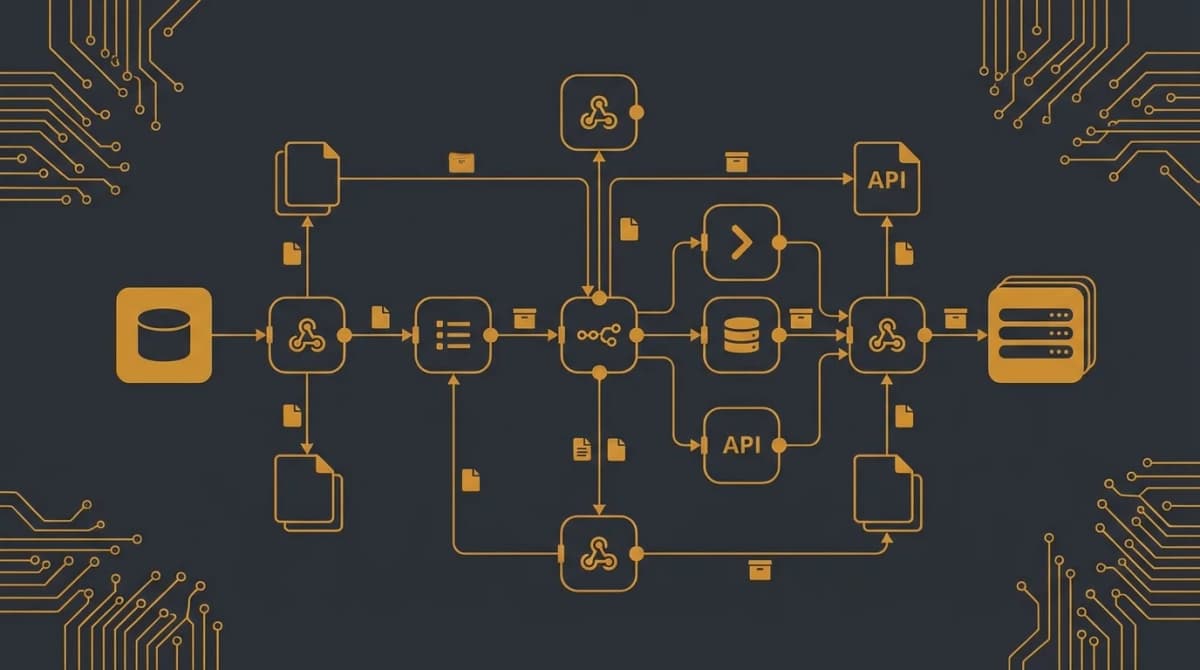
OpenClaw + n8n: Orchestrate APIs Securely via Webhooks
Connect OpenClaw to 400+ services while isolating credentials in n8n. Webhook proxy pattern, Docker setup, locked workflows, and security best practices.
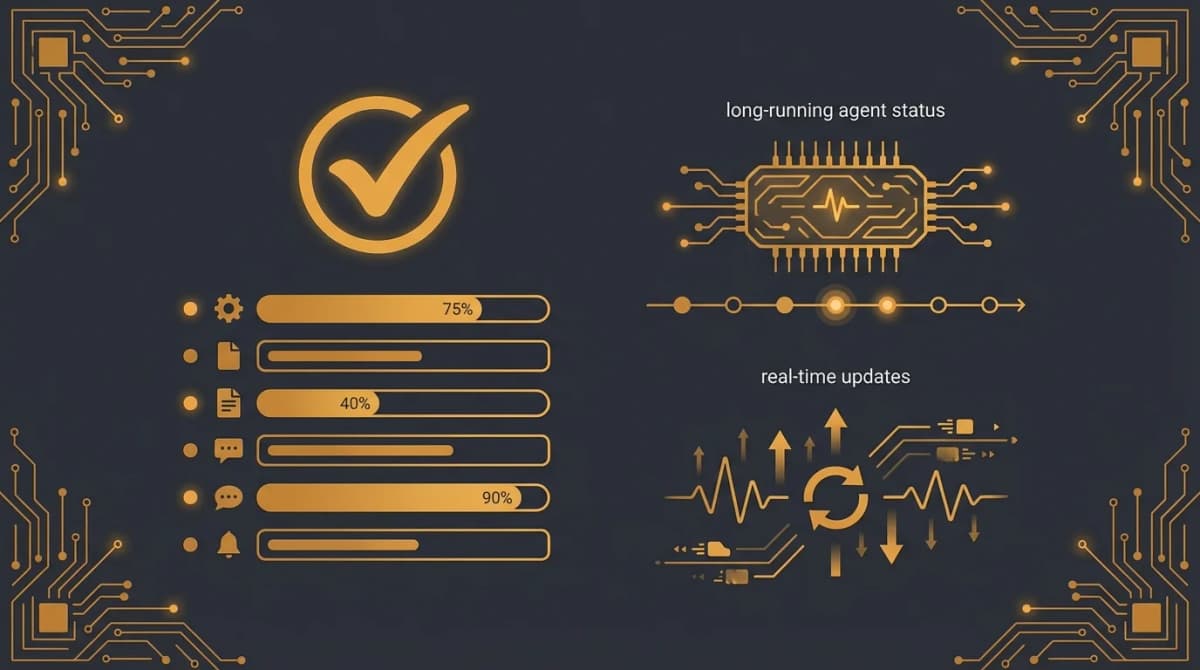
OpenClaw + Todoist: Real-Time Task Visibility for Long Agent Runs
Sync OpenClaw plans and progress logs into Todoist so long-running agent workflows stay transparent, trackable, and easy to review.
How to Create a Telegram AI Bot with OpenClaw (Step-by-Step Guide 2026)
Complete guide to building your own Telegram AI bot with OpenClaw. Step-by-step setup, configuration tips, use cases, and a 60-second alternative.